Most fleets don't miss preventive maintenance because nobody cares. They miss it because the PM schedule lives in one place, the work order gets typed up in another, the parts are ordered after the truck is already on the lift, and the tech who was supposed to do the job was out sick. Automated work order management closes those gaps: the moment a truck hits a PM trigger, a complete work order appears with the right tasks, the right technician, the right parts, and a labor estimate attached. This guide shows how the automation works, how to set it up in five steps, and what to watch for. Start free and automate your first PM work order today.
PM Schedule → Work Order → Completed Repair
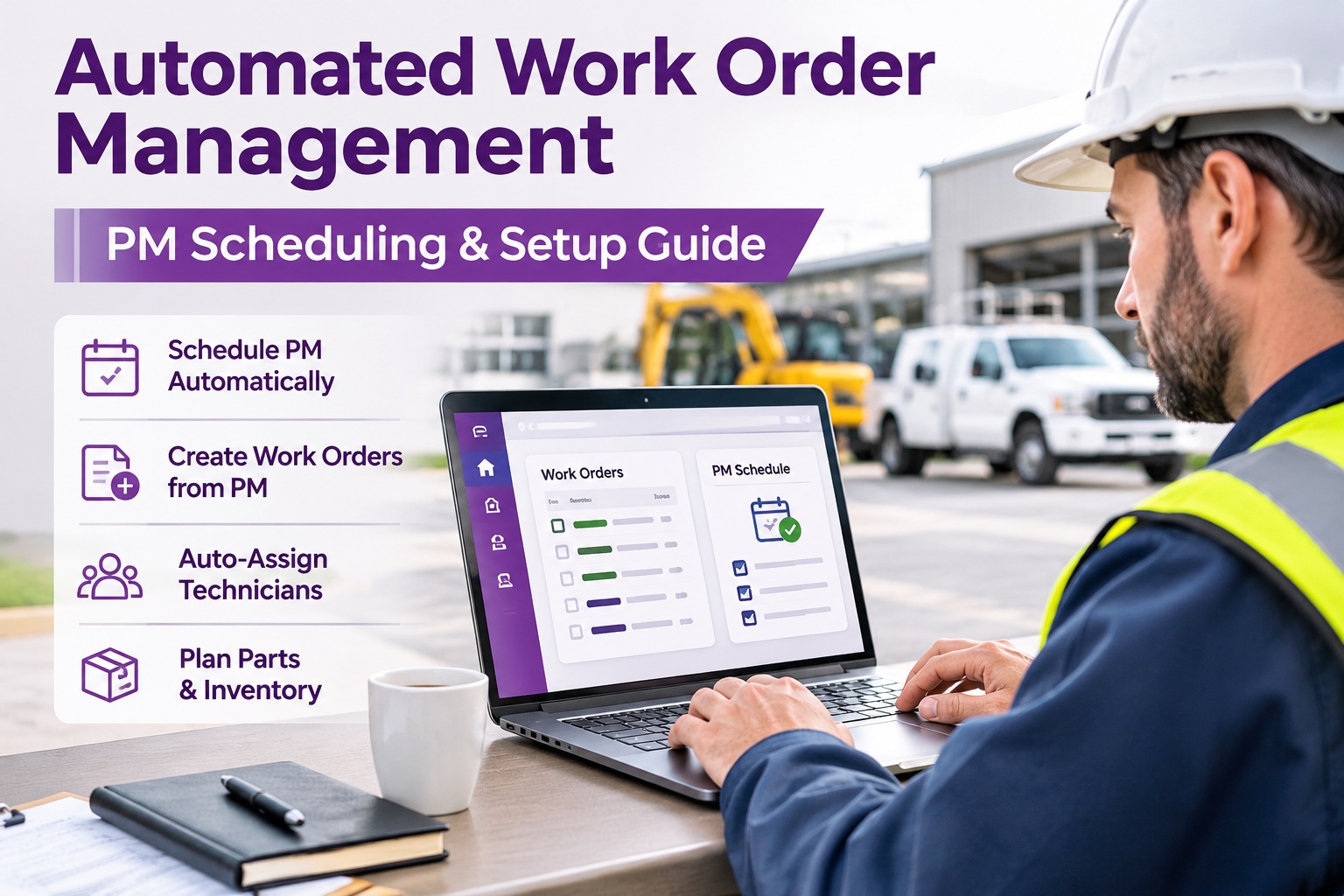
Automated Work Order Management: PM Scheduling & Setup Guide
Truck Inspection & Maintenance Management Software turns every preventive maintenance trigger into a ready-to-work order: tasks, technician, parts, and labor time already filled in. Your shop starts the day with a plan instead of a pile of paperwork.
Autowork orders created from PM triggers
Plannedparts and labor attached before the truck arrives
Trackedevery repair from open to closed
Manual vs. Automated: What Actually Changes
The work itself, an oil change or a brake inspection, stays the same. What disappears is the administrative chain around it: remembering, writing, assigning, ordering, and chasing. Here is the difference side by side.
Manual PM Process
- Someone checks a spreadsheet or calendar to see what is due
- Work orders are typed or copied by hand
- Parts are discovered missing after the truck is down
- Assignments are verbal, so jobs get dropped or doubled
- Completed work is closed out days later, if at all
Automated Work Orders
- The system watches miles, hours, and dates for you
- A complete work order is generated the moment a trigger hits
- Parts are flagged against inventory ahead of time
- The right tech is assigned by skill and availability
- Completion is logged on the job and history updates itself
From Trigger to Closed Repair: The Automated Flow
Think of automation as a conveyor belt. Each stage hands a finished piece of work to the next, with no one re-entering information along the way.
1PM Trigger FiresMileage, hours, date, or inspection defect
2Work Order CreatedTask list pulled from the PM template
3Tech AssignedMatched by skill, shift, and workload
4Parts and Labor PlannedStock checked, hours estimated
5Repair CompletedSign-off, notes, and history saved
Four Triggers That Create Work Orders Automatically
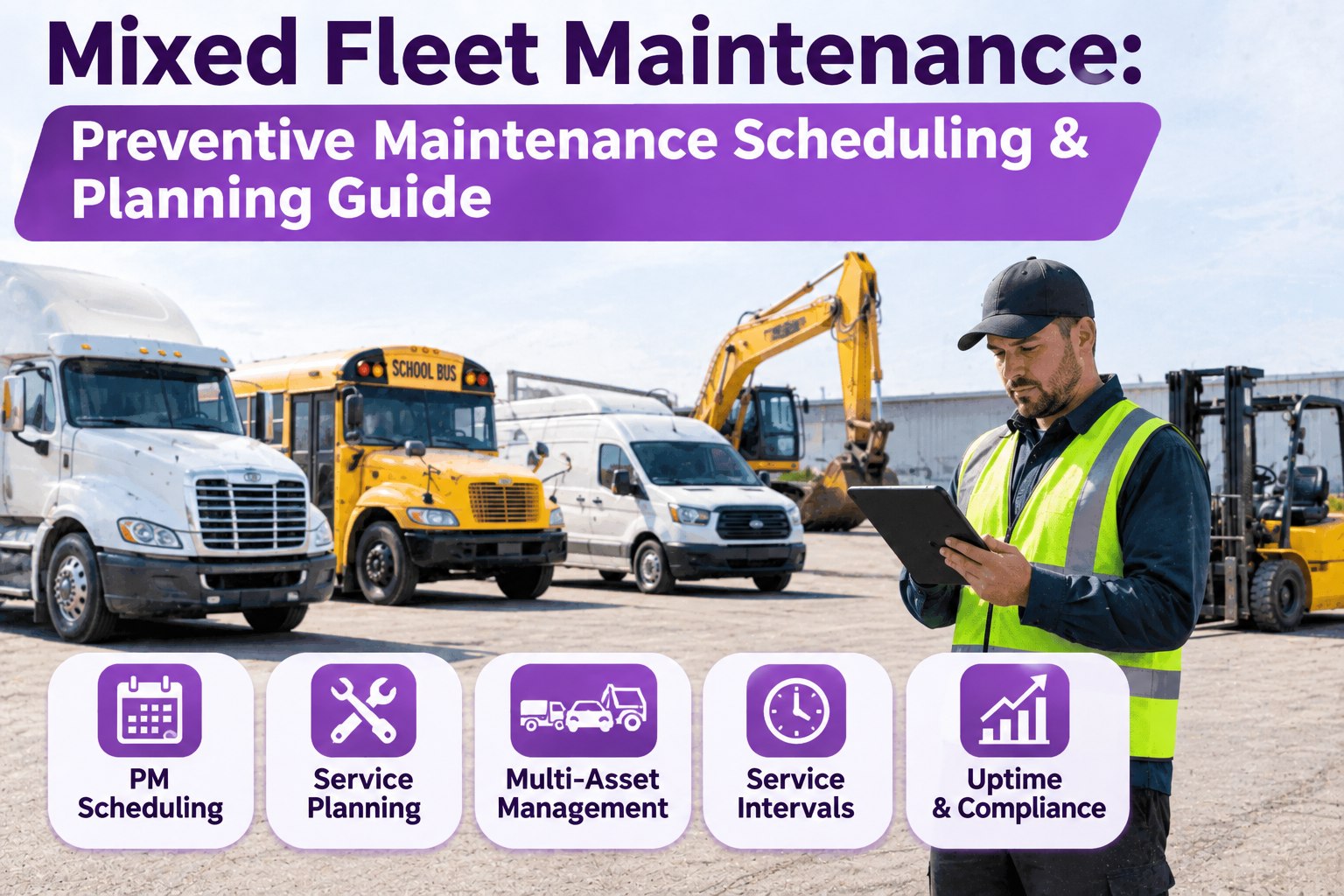
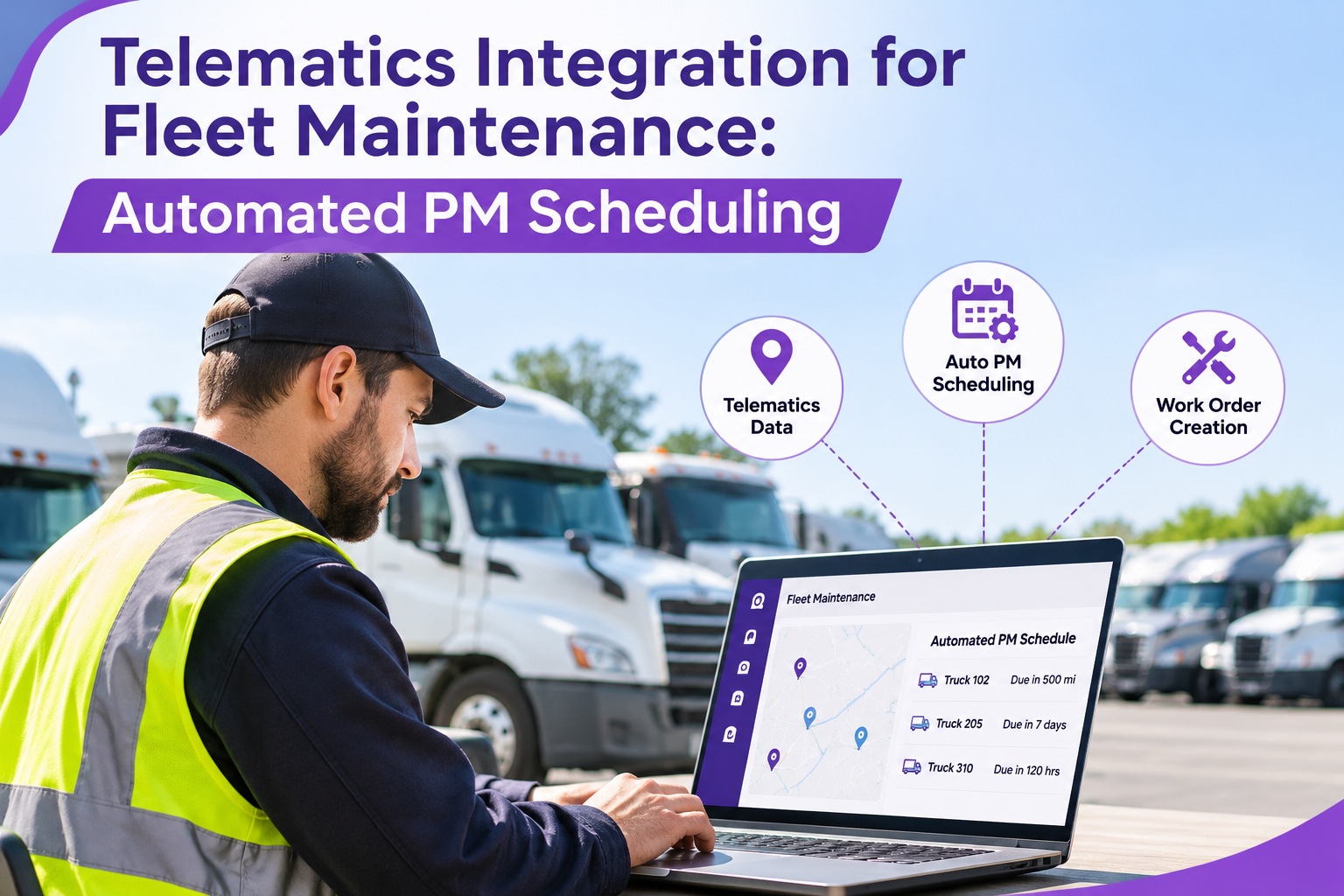
The best PM programs use more than one trigger type, because trucks wear by distance, by idle time, and by calendar. A well-set-up system watches all of them at once and fires on whichever comes first.
MileageExample: oil and filter service every set number of miles, read from telematics or the last logged odometer.
Engine HoursBest for idle-heavy workReefer units, yard tractors, and PTO equipment wear by hours, not miles. Trigger on hours so they are not under-serviced.
Calendar DateAnnual DOT inspections, DOT-required brake checks, and seasonal items should fire on a fixed date no matter how much the truck ran.
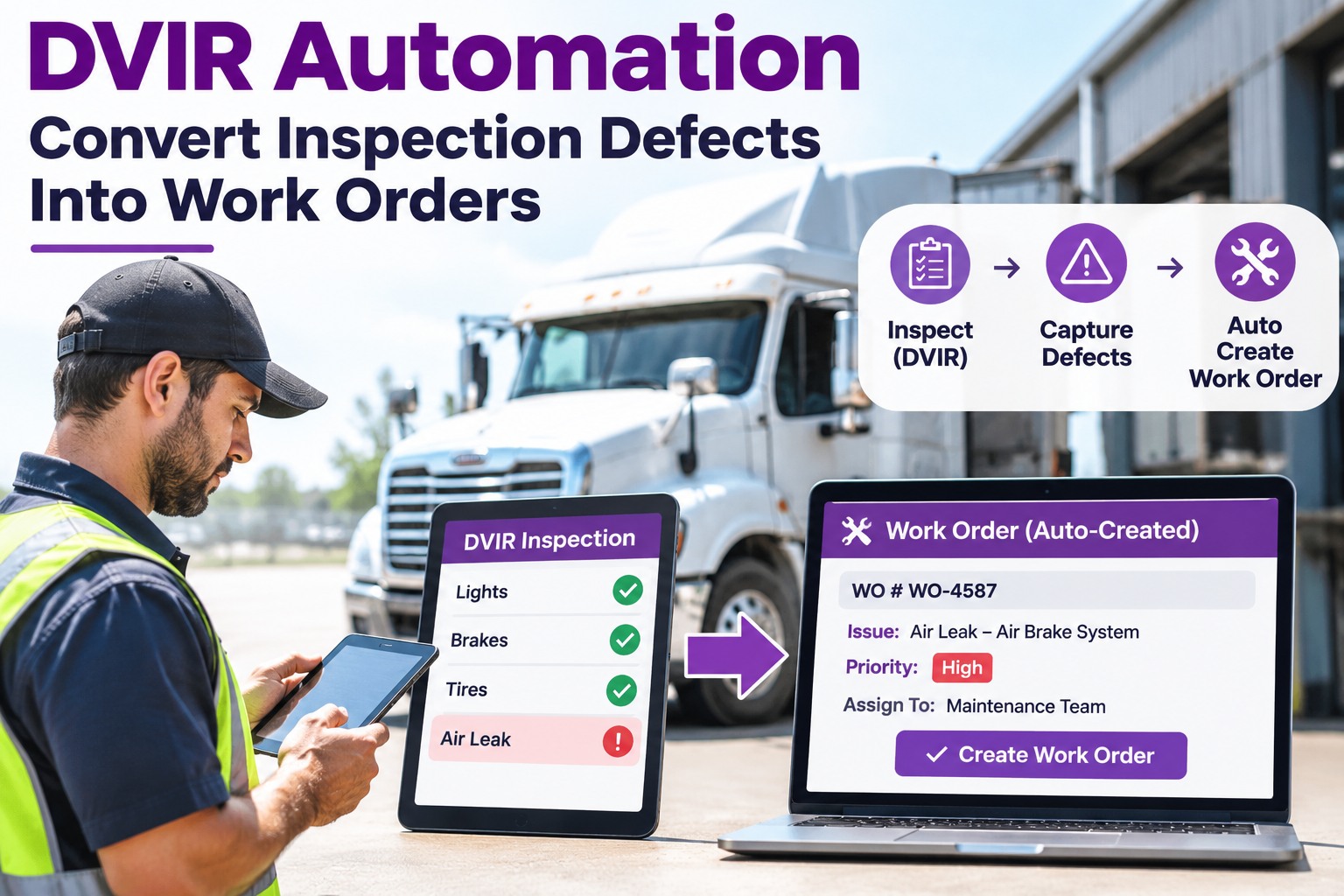
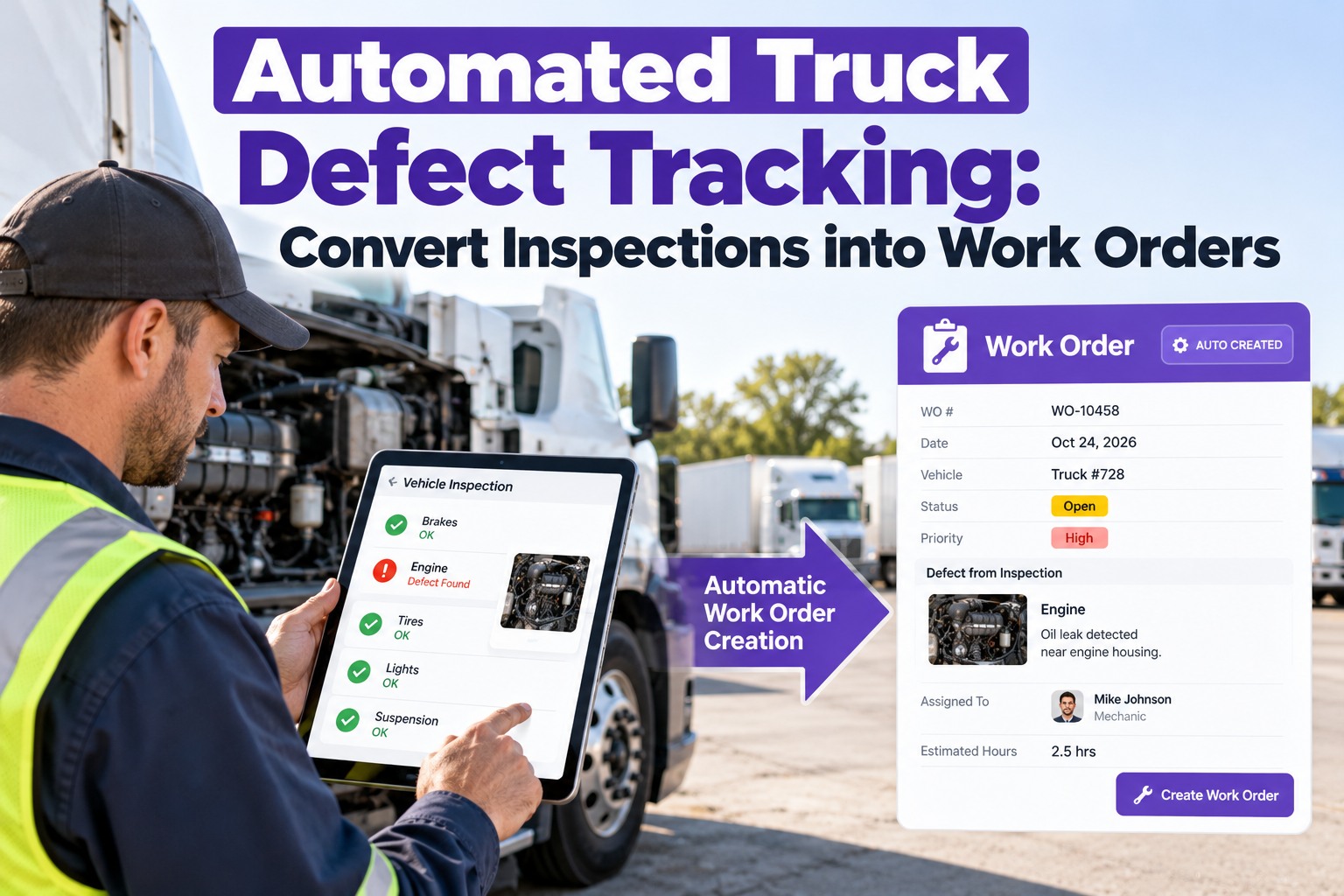
Inspection DefectA failed item on a driver's pre-trip inspection can open a repair work order on the spot, with no phone call needed.
Pro tip Set each PM to fire a little before it is due, for example at 90% of the interval. That lead time is what gives your shop room to order parts and slot the truck in without pulling it off a live route.
What Every Auto-Generated Work Order Should Contain
A work order that only says "PM service" still forces someone to figure out the details. A complete one lets a technician walk up and start. Here is what to build into your templates.
Work Order: PM-B ServiceUnit 214 · Auto-created
Task checklistOil and filters, belts, brakes, grease points, lights, tires
Assigned technicianMatched to skill and shift availability
Parts listFilters, fluids, and wear items checked against stock
Labor estimateStandard hours per task so the bay schedule is realistic
Priority and due dateRoutine, soon, or critical based on the trigger
History linkPast repairs and open defects for the same unit
Parts and Labor Planning: Where Downtime Is Won or Lost
A truck waiting for a part costs more than a truck being serviced. Because the work order knows which tasks are coming, it also knows which parts and how many labor hours the job needs, before the truck rolls in.
Parts Planning
- Parts attached to each PM template, so the list builds itself
- Stock levels checked the moment the order is created
- Low or missing parts flagged early for purchasing
- Parts used are deducted when the job closes
Labor Planning
- Standard hours set per task, then added up per order
- Bay and technician time booked against real estimates
- Estimated vs. actual hours compared after each job
- Templates tuned over time as the data comes in
Your Shop, Planned Before the Truck Arrives
See PM triggers, technician assignments, parts readiness, and labor estimates on one screen. Start free, or book a short demo and we will walk through your own PM intervals.
Set It Up in 5 Steps
You do not need to automate everything on day one. Start with your most common service, prove it works, then expand.
1Load your assetsAdd tractors, trailers, and equipment with current odometer or hours readings. Accurate starting numbers make every future trigger accurate.
2Build PM templatesCreate A, B, and C-level services with task checklists, intervals, and the parts each one uses.
3Choose your triggersPick mileage, hours, date, or a mix per template, and set the early-warning lead time.
4Set assignment rulesRoute work by technician skill, shop location, or shift so orders land with the right person.
5Track and refineWatch overdue work, actual vs. estimated hours, and repeat repairs, then adjust intervals with real data.
Numbers Worth Tracking After You Automate
Automation only pays off if you can see it working. These four measures tell you quickly whether your schedule is healthy.
PM on-time rateShare of PMs finished before their due point
Overdue work ordersOpen orders past due, by truck and by tech
Estimated vs. actual hoursShows where templates need adjusting
Repeat repairsSame defect returning, a sign of a root-cause gap
Why it matters Inspections feed this loop too. When a driver's pre-trip finds a defect, the same system can open a repair order, so scheduled and unscheduled work live in one place with one history per truck.
Frequently Asked Questions
What is automated work order management?
It is software that creates, assigns, and tracks maintenance work orders on its own, based on rules you set, such as a mileage interval, an engine-hour count, a calendar date, or a failed inspection item. Instead of someone writing each order by hand, the system generates it with the tasks, parts, and labor already attached.
Start free and try it on your fleet.
Can one PM schedule use more than one trigger?
Yes, and it usually should. A common setup fires the work order on whichever comes first: a set number of miles or a set number of days. That protects low-mileage trucks that still age and high-mileage trucks that run hard.
Book a demo to see multi-trigger scheduling.
How does the system pick which technician gets a job?
You define the rules: by skill or certification, by shop location, by shift, or by current workload. The work order is assigned the moment it is created, and a manager can still reassign it with one change if plans shift.
Do I need to be tech-savvy to set this up?
Fewer Surprises · Faster Turnarounds
Let Your PM Schedule Do the Paperwork
Automated work orders, technician assignment, parts and labor planning, and repair tracking, all in one maintenance workflow built for trucking fleets. Start free, or book a demo and see it with your own units.
No credit card required. Free for up to 3 trucks.